Creating Pairings
How to create and manage pairings for each round of a tournament.
At the start of each round, every competitor must be assigned an outcome: They are either paired against another competitor, given a bye, or excluded.
- Paired competitors are matched against an opponent at a specific table. Both will have a match result recorded for the round.
- Bye competitors are given a one-sided pairing with no opponent. A bye still counts as a round result (typically a win) but no match is played. It is up to the TO to submit the appropriate bye result for the pairing.
- Excluded competitors are not part of the round at all. They receive no result and their record is unaffected.
Use exclusions for competitors who have dropped, are absent, or otherwise should not participate in a given round. Use byes when you have an odd number of competitors and someone must sit out without being penalized.
You can also generate pairings prior to the start of the tournament. Keep in mind that you might have to edit the (or redo them entirely) if the roster changes on the morning of the event.
To set up pairings for a round, open the Tournament Actions menu and select Configure Round [N]. This takes you to the pairing setup page.
Auto-Generated Workflow
When there are no existing pairings for the round, the Auto-Generate Pairings dialog opens automatically.
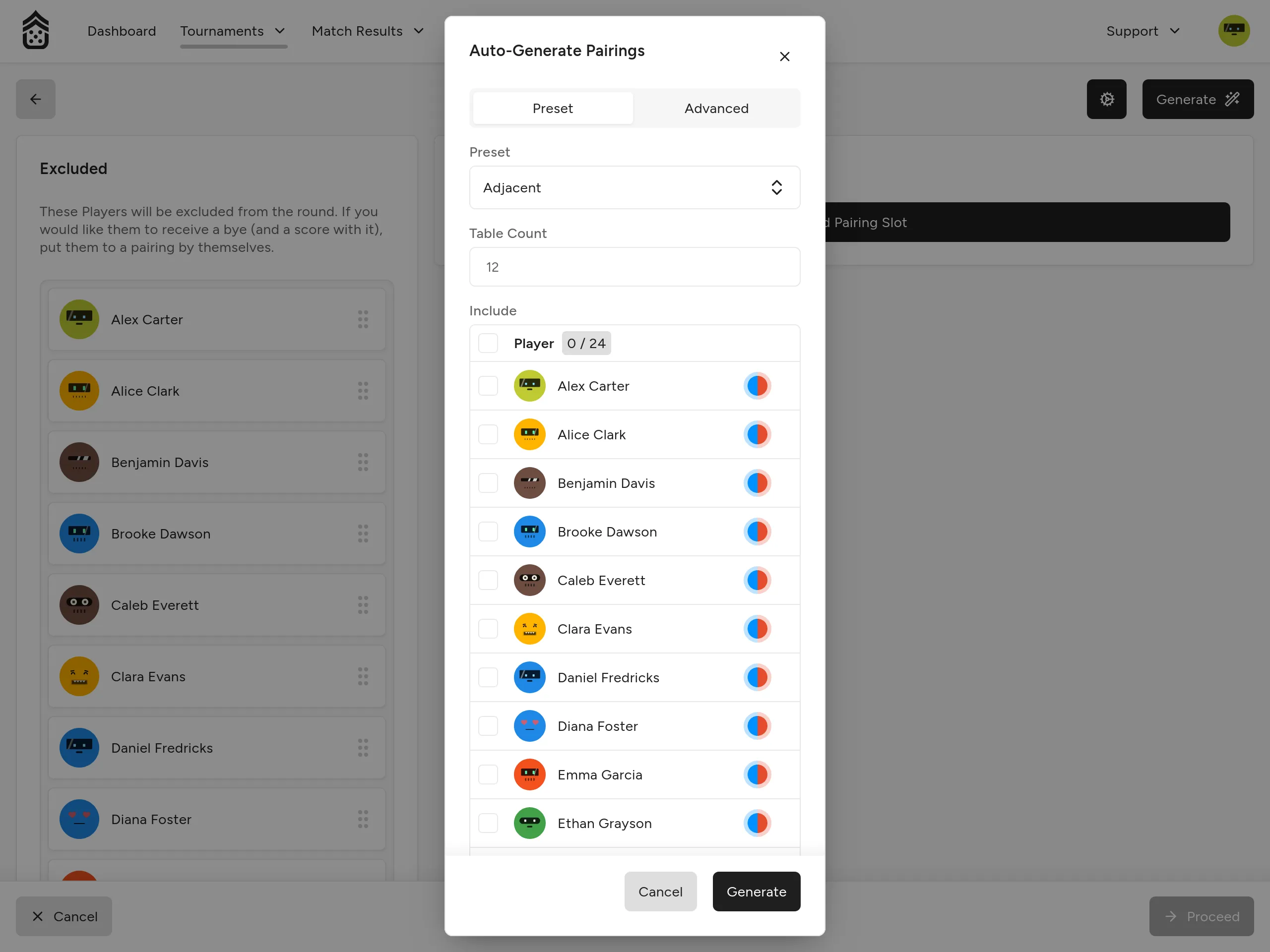
Selecting competitors
All registered competitors are listed with checkboxes. Use Select all to include everyone, then uncheck any competitors who should be excluded from this round (e.g. late drops or no-shows).
Setting the table count
Enter the number of tables available in the Table Count field. This must be at least equal to the number of pairings that will be generated: Half the number of included competitors, rounded up. If you enter a number that’s too low, you’ll see a validation error and the pairings won’t be generated until you correct it.
Generating
Click Generate. The dialog closes and the pairing list is populated. All pairings initially show Auto for their table assignment, meaning tables will be assigned automatically in order when the round is confirmed.
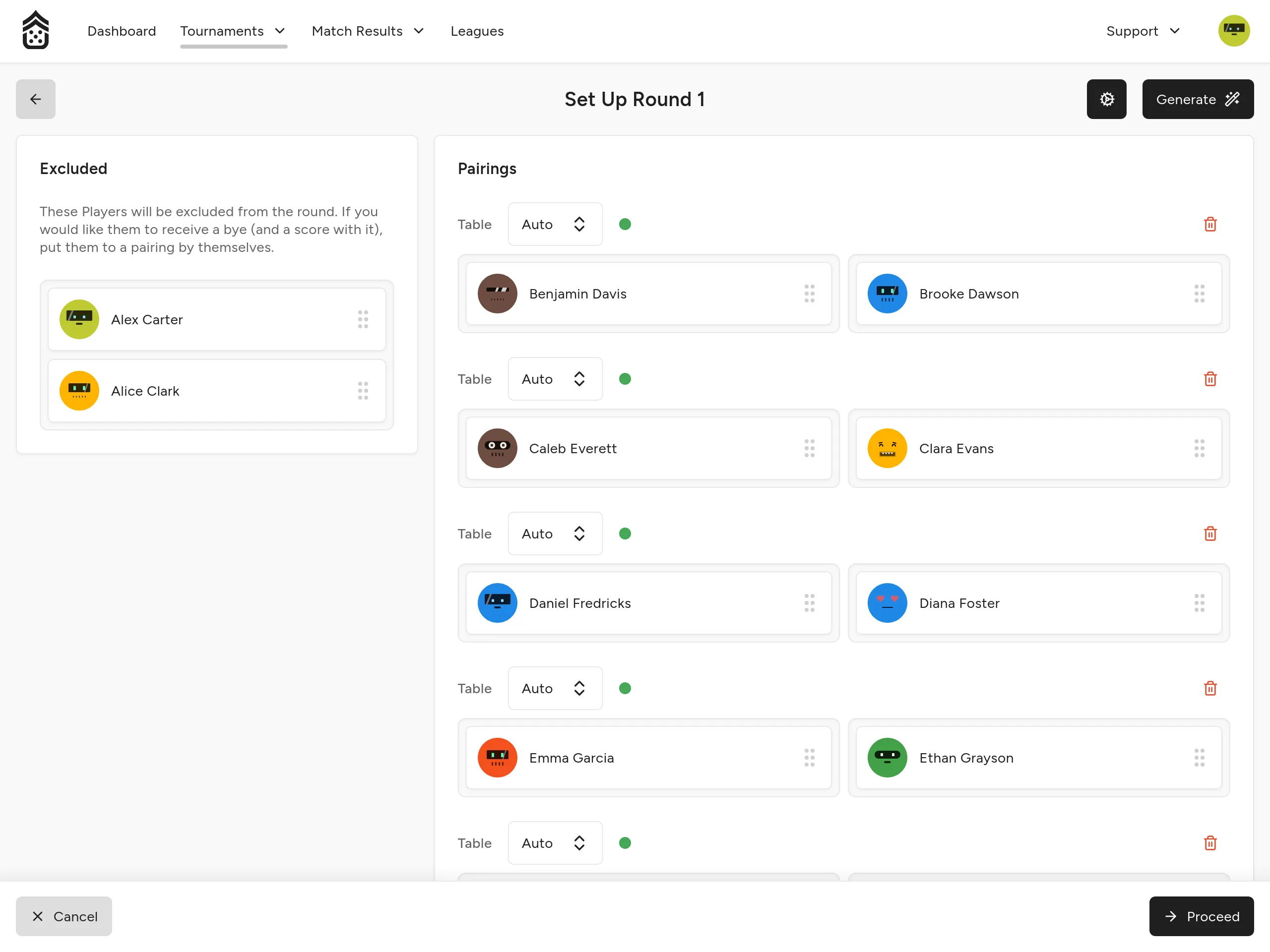
In some cases the algorithm may not be able to generate pairings without repeat opponents. See Pairing algorithm limitations for details.
Confirming
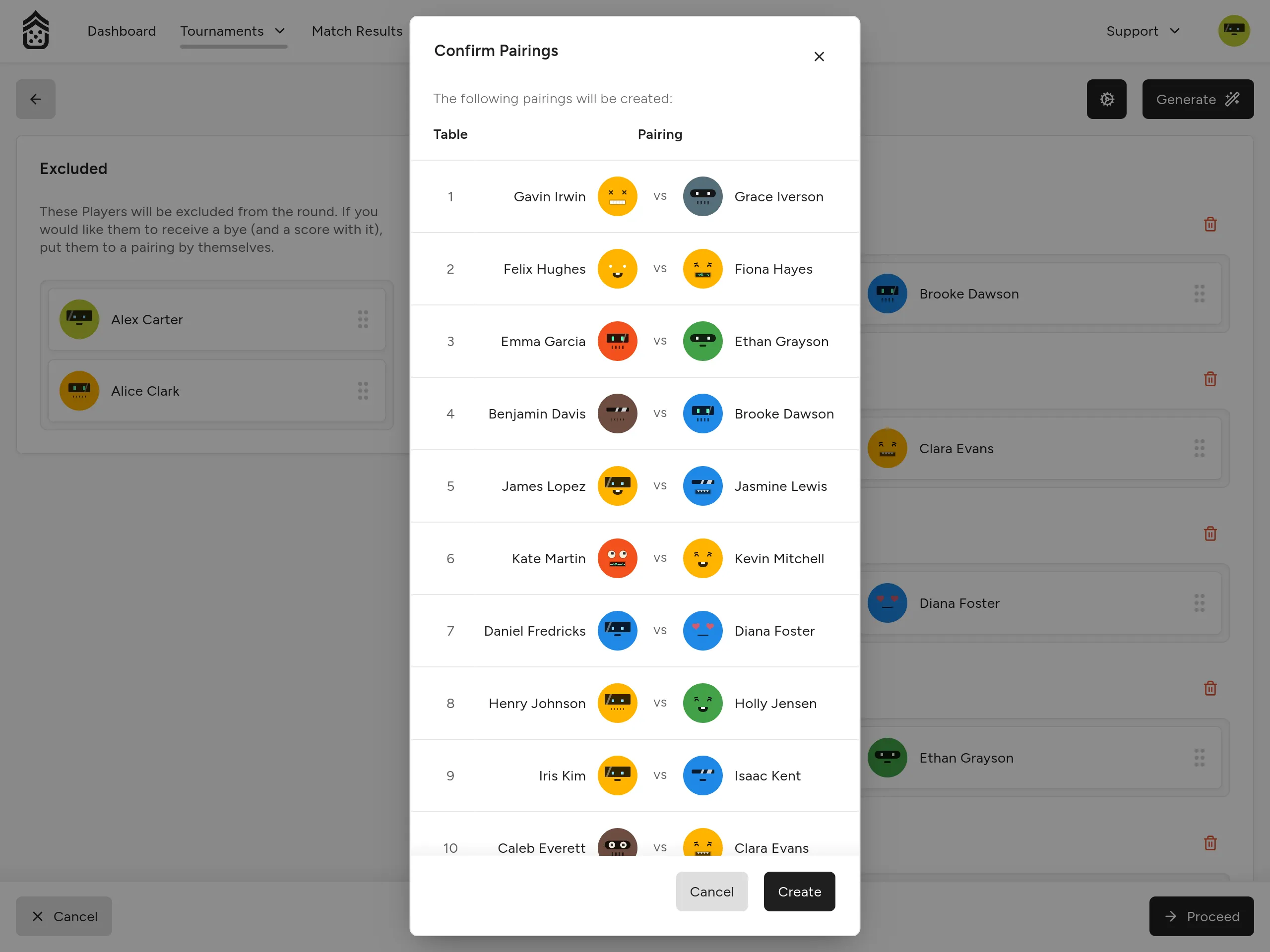
Click Proceed. The Confirm Pairings dialog shows a summary of all pairings that will be created. Click Create to save them and return to the tournament detail page.
Manual Workflow
If you want to build pairings by hand, dismiss the Auto-Generate dialog by pressing Escape or clicking/tapping outside of it.
Configuring rules
Click Configure to open the Configure Pairing Rules dialog. Set the Table Count to match the number of tables you want available for assignment, then click Done.
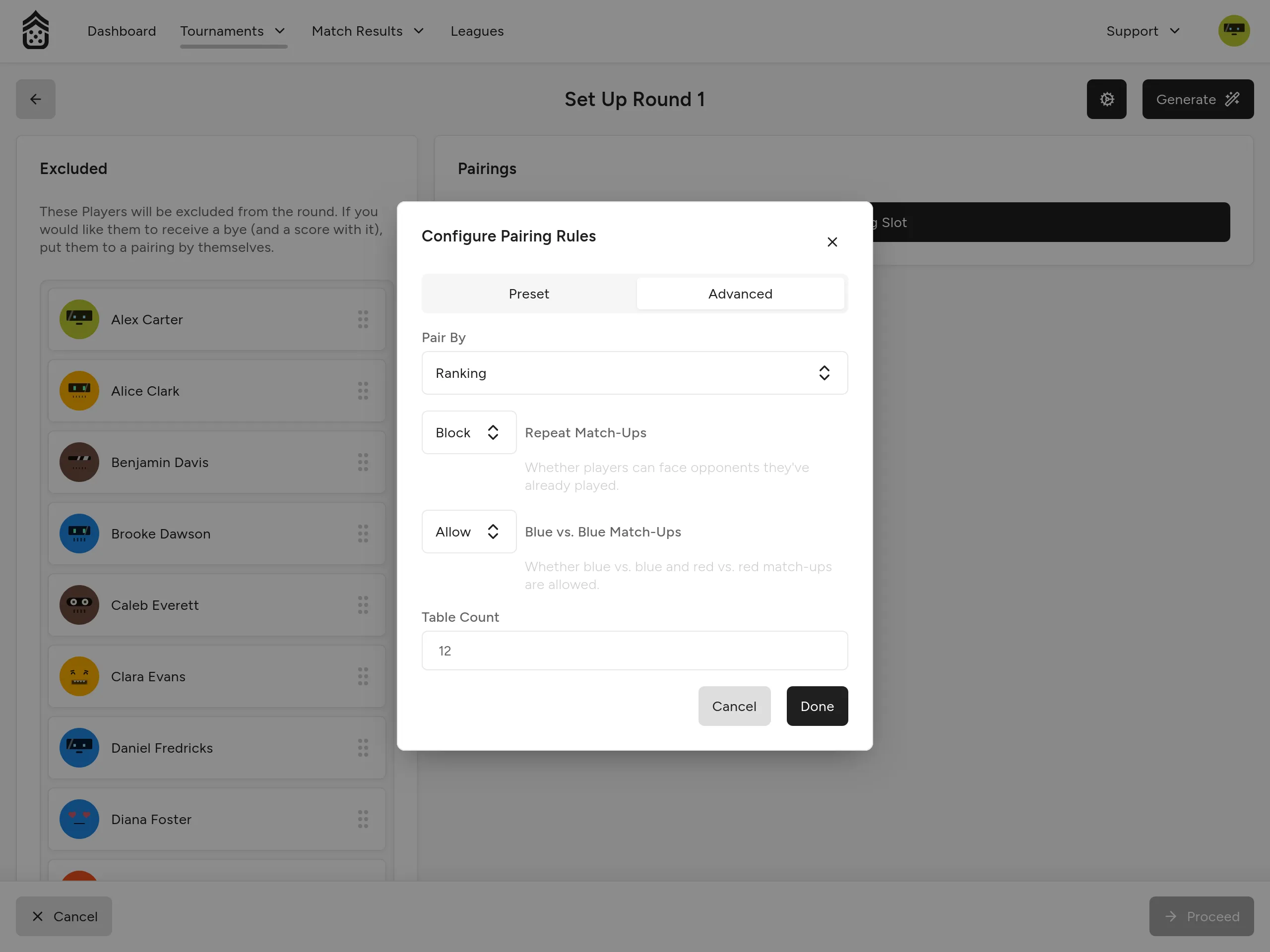
This isn’t strictly necessary, but it ensures Auto table assignments are correct.
Adding pairing slots
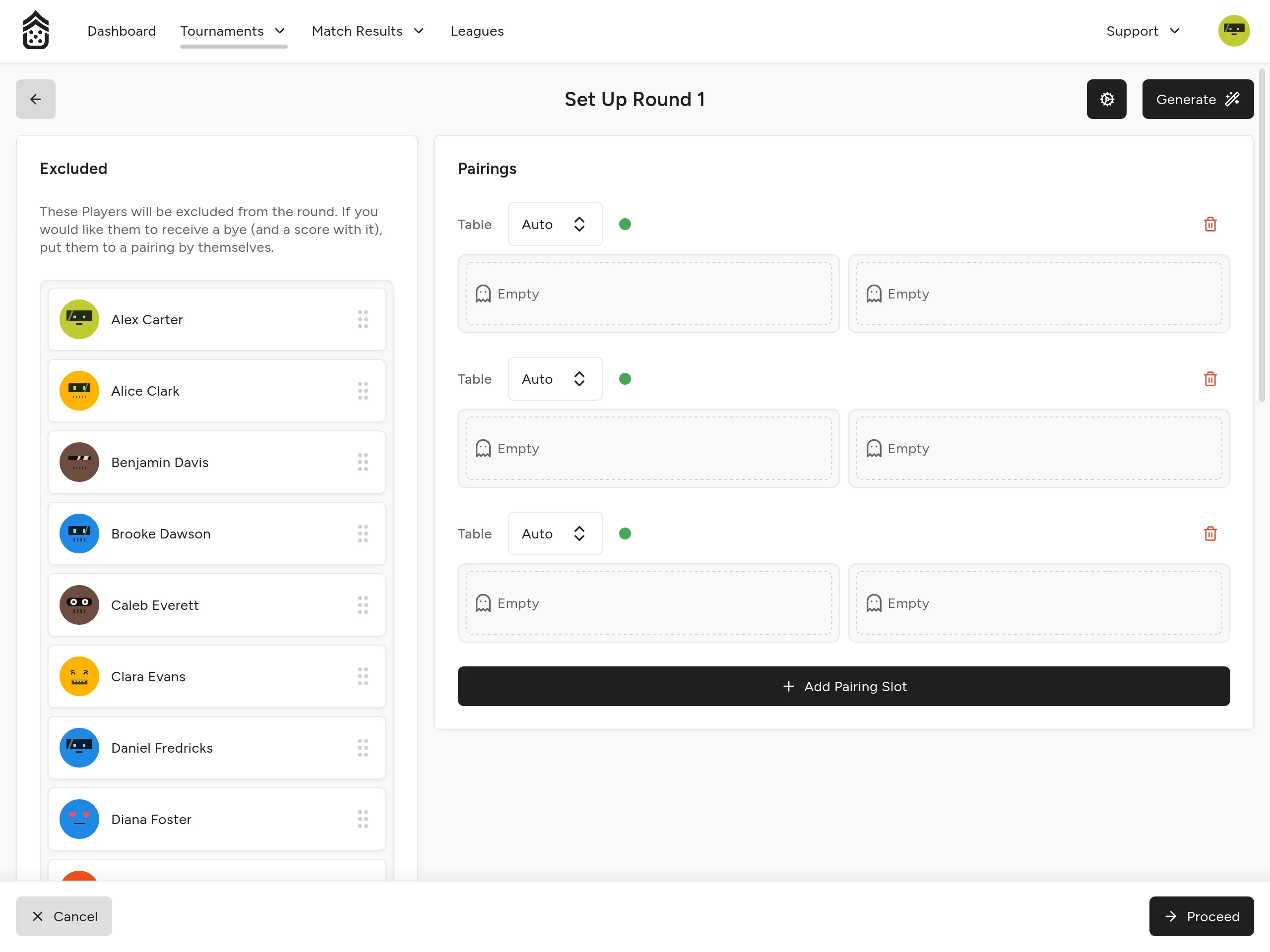
Click Add Pairing Slot to add an empty pairing row. Add as many rows as you need.
Assigning competitors
Competitors not yet in any pairing appear in the Excluded area. Drag a competitor from the Excluded area into one of the two slots in a pairing row. Repeat for their opponent.
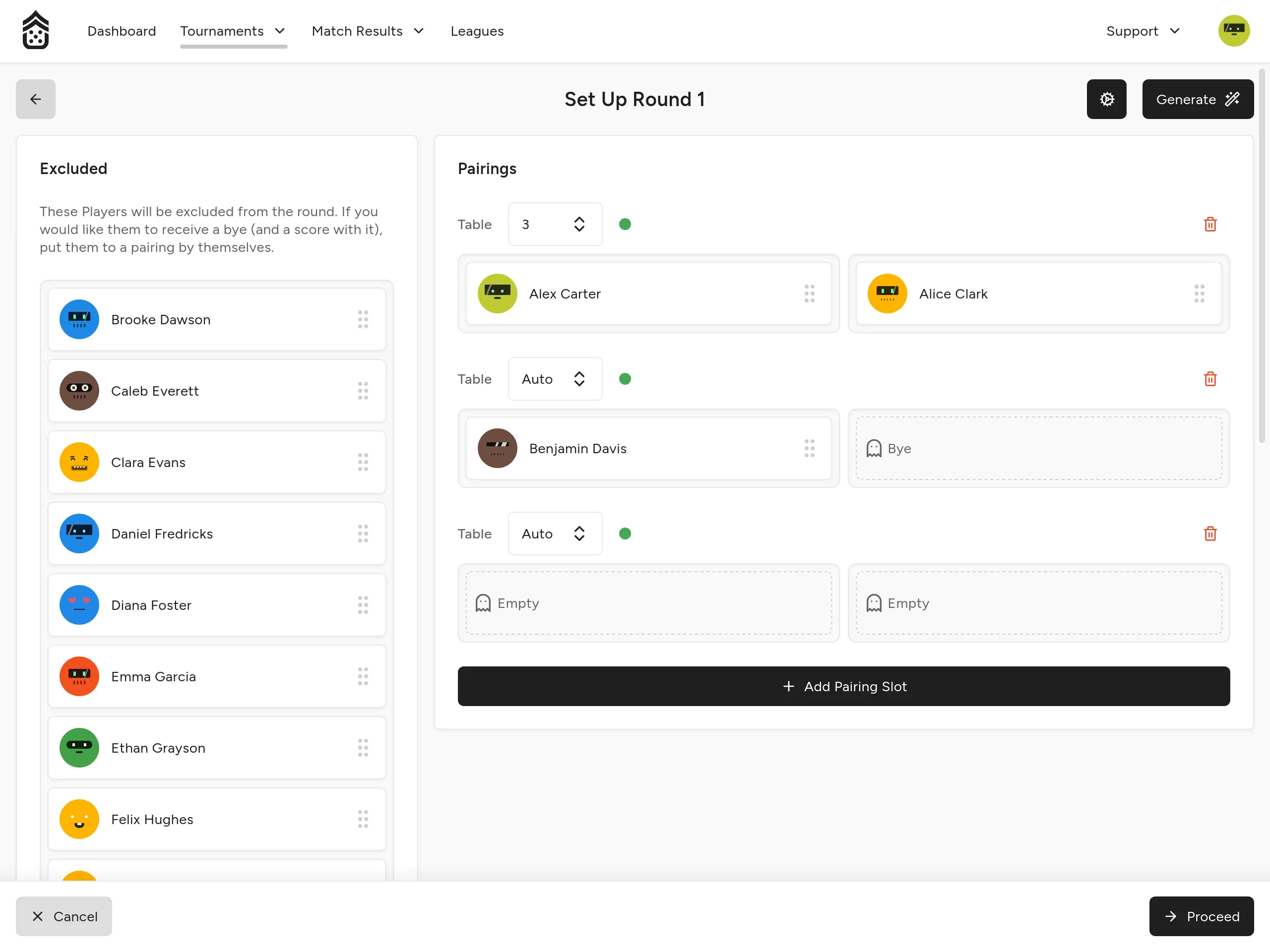
If you drag only one competitor into a row and leave the second slot empty, the competitor is automatically assigned a Bye.
Assigning tables
Each pairing row has a Table Assignment dropdown. The options are the numbered tables (1 through your configured table count) plus Auto. Select a specific table to fix that pairing to it, or leave it as Auto.
Removing rows
To remove an unused pairing slot, click the Remove Pairing button on that row.
Confirming
Click Proceed, review the summary in the Confirm Pairings dialog, and click Create.
Editing Existing Pairings
If pairings have already been generated for a round, the pairing setup page loads them directly and the Auto-Generate dialog does not open automatically.
Changing the table count
Open Configure and adjust the Table Count. Any pairings assigned to a table number that now exceeds the new count will revert to Auto.
Moving competitors
Drag a competitor out of a pairing slot and into the Excluded area to remove them from that pairing. You can then drag them into a different slot, or leave them excluded.
Replacing all pairings with auto-generated ones
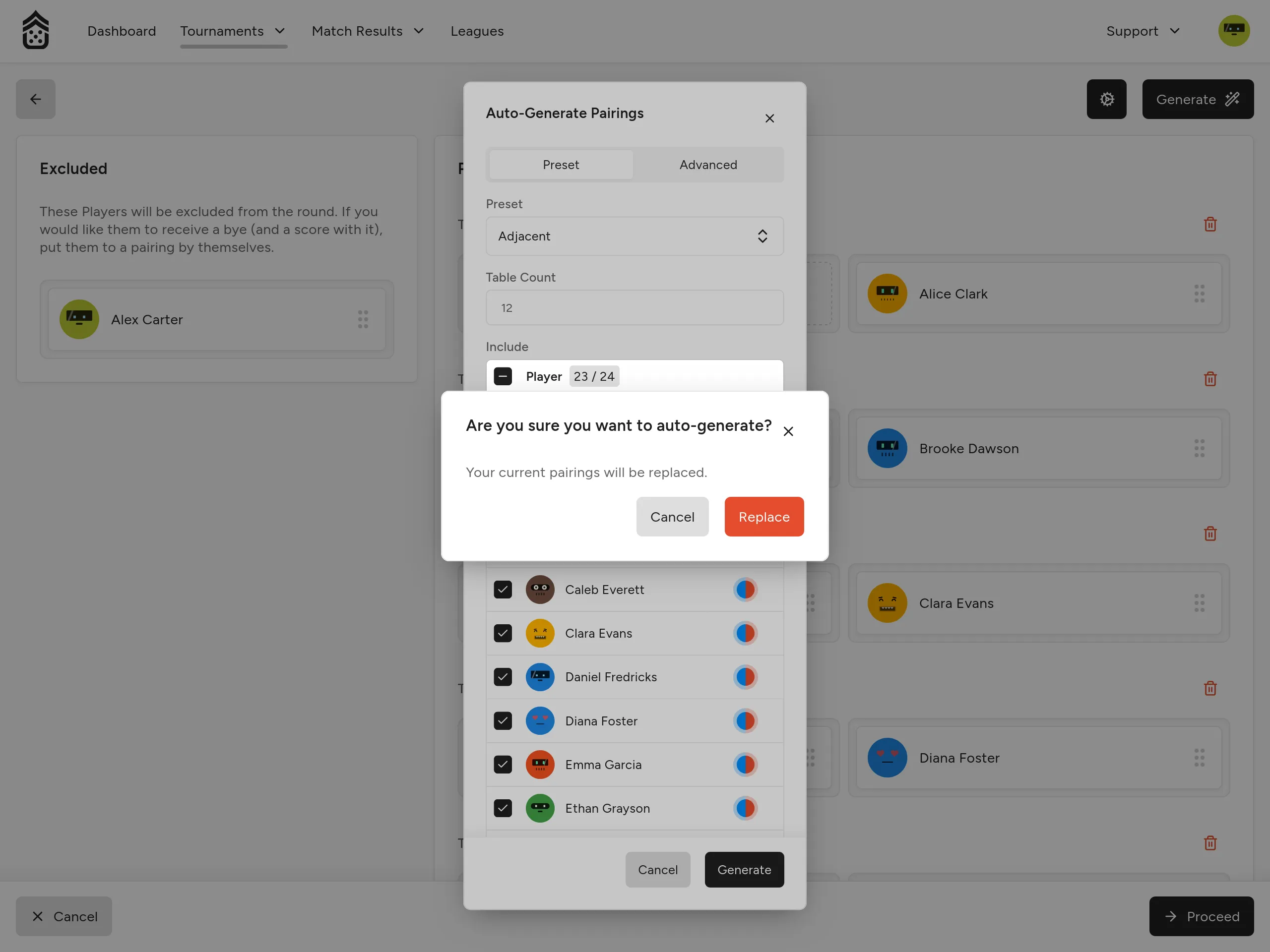
Click Generate to open the Auto-Generate dialog. After clicking Generate inside the dialog, you’ll be asked to confirm the replacement since your existing pairings will be discarded. Click Cancel to go back without making any changes, or Replace to proceed.
Confirming
Click Proceed and then Create as normal. The pairings shown in the Confirm dialog are exactly what will be saved.
Subsequent Rounds
When setting up any round after the first, the Auto-Generate dialog opens pre-populated with all competitors who participated in the previous round.
Pairings carry history from previous rounds, which is reflected visually on each pairing row:
| Indicator | Meaning |
|---|---|
| 🔴 Red | The two competitors have already been paired against each other in a previous round, or two pairings are assigned the same table number. |
| 🟡 Yellow | The pairing is assigned to a table one of the competitors already played at in a previous round. |
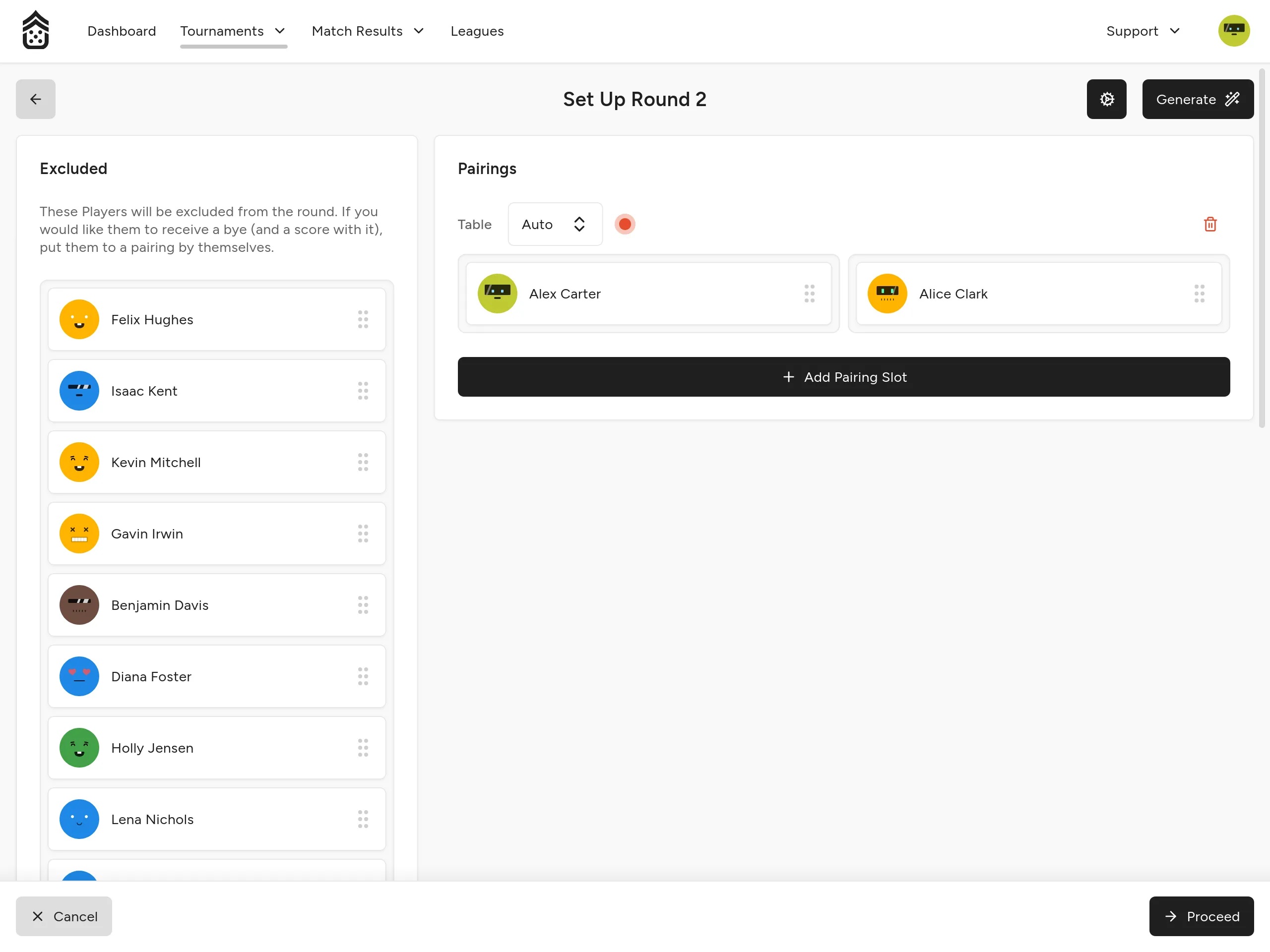
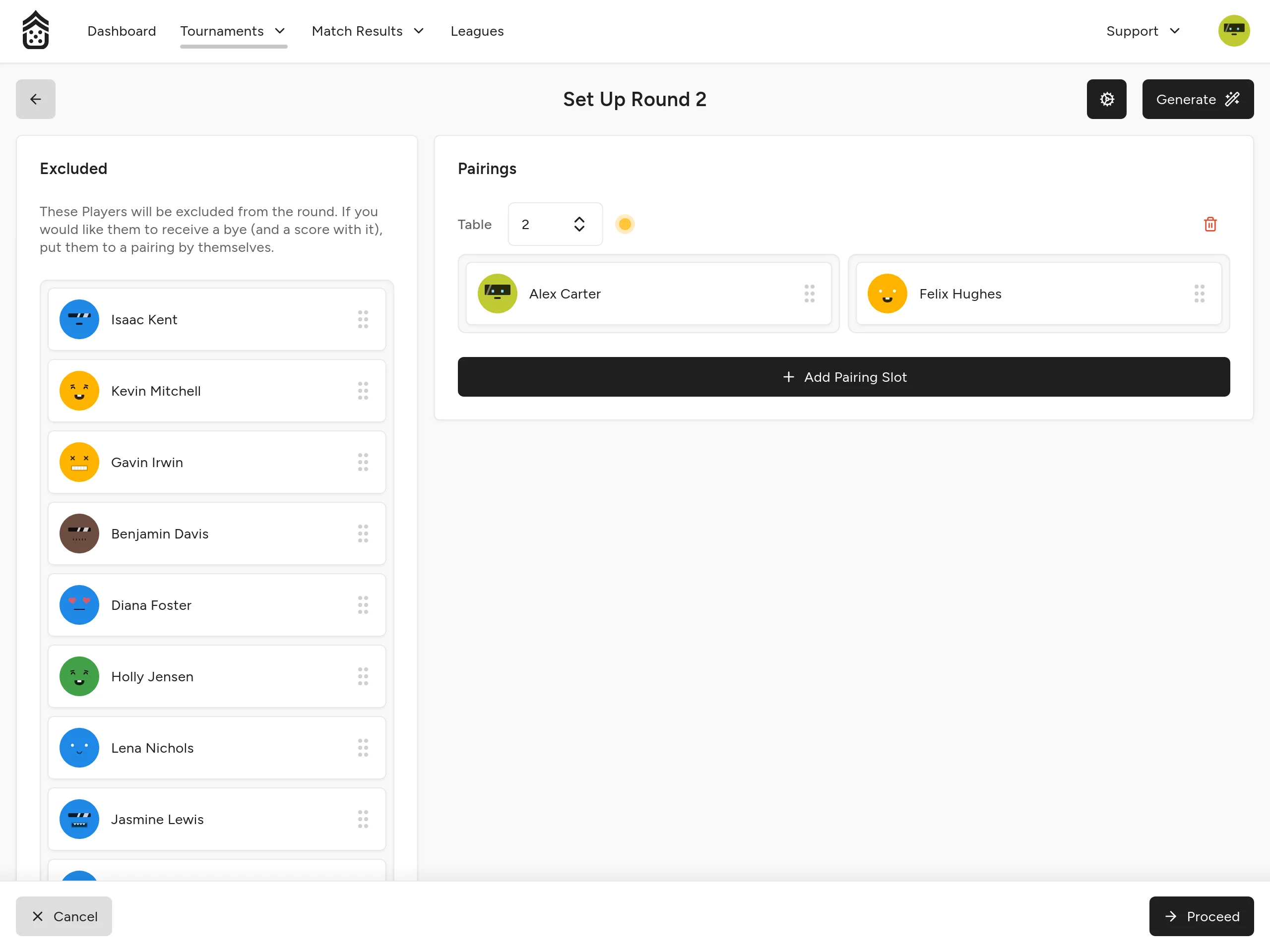
These indicators are warnings only: You can still confirm pairings with conflicts if needed.